Bank Statement Converter: PDF to CSV & Excel | GetBankCSV
The bank statement converter that shows its arithmetic: PDF to CSV, Excel, QBO, OFX and QIF, balance-checked, and it names what it missed. | GetBankCSV
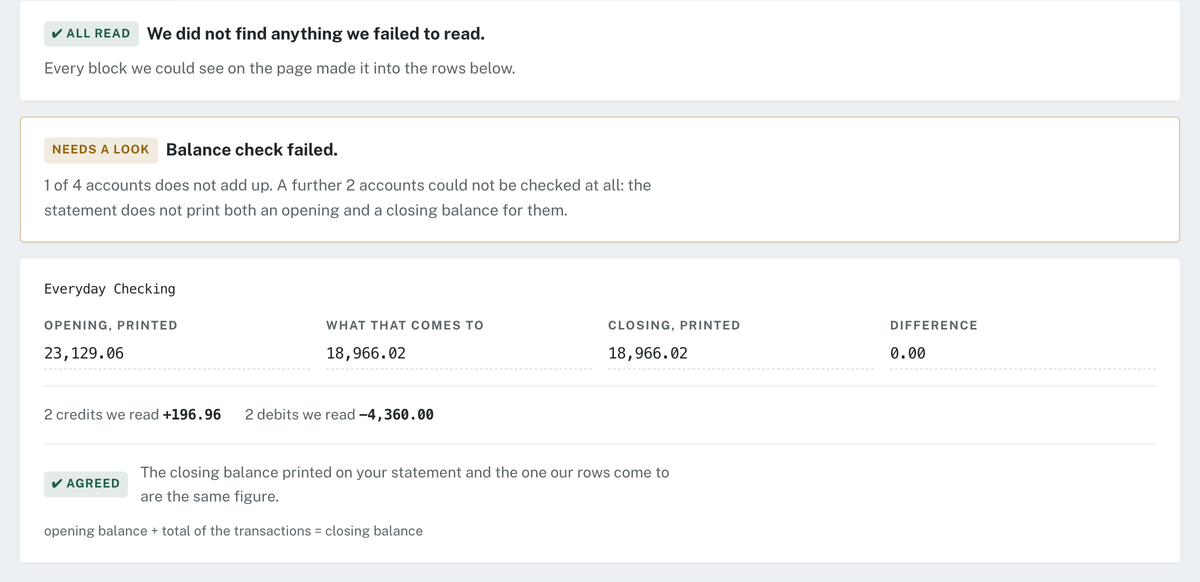
✓ Balance-checked on every fileBank Statement Converter: PDF to Excel or CSV Your Accounting Software Will AcceptEvery bank statement converter gives you a spreadsheet. Most give you one QuickBooks or Xero will bounce. GetBankCSV shapes the export to the column layout, date style and row limit your accounting software actually documents — and adds up every row against the closing balance printed on your statement — so the import works the first time.PDF → CSV · XLSX · QBO · OFX · QIFConvert my first statement free See what it costsNo credit card1 free statement a monthDeleted after conversion✓ Digital and scanned PDFs ✓ 1 statement free every month1Upload 2Read 3Reconcile 4ExportA real run on our own test statement — the arithmetic in full, not a percentage, including the accounts this bank statement converter could not check. A balance check cannot see a block that never made it into the table, so we look for those a second way.5 formatsCSV, XLSX, QBO, OFX, QIF — none of them locked1 statementFree every month, with the full balance checkEvery fileBalance-checked row by row, not sampled24 hoursNothing of yours is kept longer than thatIn plain termsWhat is a bank statement converter?A bank statement converter turns PDF bank statements into structured spreadsheet data you can sort, total and import. You upload the statement, the bank statement converter reads each transaction line — date, description, debit, credit and running balance — and returns the result as Excel or CSV.Two things separate a usable conversion from a wasted one. The first is the source file: a PDF downloaded straight from online banking carries a real text layer, while a scan or a phone photo is only an image and must be read by OCR, which is measurably less reliable. The second is the output format, and it is the step most people are not warned about. Accounting software does not accept just any spreadsheet. QuickBooks Online takes a CSV of exactly three columns (Date, Description, Amount) or four (Date, Description, Credit, Debit), and caps each upload at 350 KB and 1,000 lines. Xero requires Date and Amount at minimum, income as positive and expenses as negative, and refuses files over 100,000 rows. A bank statement converter that ignores those rules hands back a file that opens fine and imports badly.ConvertBank statement converterA free account converts 1 statement through this bank statement converter every month.✕✓Sign in to run itYour file stays right where it is — as soon as you are in, it starts. No password to invent and none for us to lose.One statement a month, freeUp to 10 pages per statementAll five formats — CSV, XLSX, QIF, OFX, QBOBalance check and unread-content notice Continue with GoogleWe ask Google for your email address and nothing else. Free. No card. Nothing renews. Your file is deleted after conversion.✕ Password-protected PDFThis statement is password-protected.Your file is still here — you do not need to pick it again. Banks usually use your date of birth or the last four digits of the account. We use it only to open this file while we convert it, and we never store it.Password Unlock and convertDrop a statement hereA PDF from your bank, or a scan or photograph of a paper one. The bank statement converter asks nothing of you until it is read and added up.Choose a PDF or drag the file onto this sheetPDF only · up to 25 MB and 40 pages each · up to 12 at onceWhat to expectFree to start: 1 statement every month.The bank statement converter gives you the full preview, the balance check, and anything we could not read.Every row added up.Opening balance plus what the bank statement converter read, held against the closing balance printed on your statement.Anything unread is named.By page, on this screen and inside every file this bank statement converter hands you — not just here.Deleted after conversion.Your PDF goes as soon as it is read. The rows follow within a day.GetBankCSV+ Add statementsWorkspace Files in this batch RecentProjects+ New projectAccount Settings‹ Back Buy pages Unlock the downloadEverything the bank statement converter has shown you so far is free and stays free. Paying unlocks the full file. Nothing else is held back.Pay onceSingle Statement$5 one time1 statements in totalAll five formatsBalance check on every fileNothing renews BuyPay onceFive Statements$9 one time5 statements in totalAll five formatsBalance check on every fileNothing renews BuyMonthlyStarter$19.99 a month100 pages a monthAll five formatsBalance check on every fileCancel whenever you like SubscribeMonthlyPro$29.99 a month200 pages a monthAll five formatsBalance check on every fileCancel whenever you like SubscribeNew project✕Project name A project keeps its name and its list of statements. The statements themselves are still deleted 24 hours after they were converted — a project does not keep them longer.Create Export✕Download BeforeWhy your converted file gets rejected — and why no bank statement converter warns youConversion is not the hard part any more for a modern bank statement converter. Reading a table out of a PDF is a solved problem, and a dozen tools do it competently. The part that still costs an afternoon is what happens next: you open the file, it looks correct, you upload it to your accounting software, and it fails.It fails for reasons that have nothing to do with extraction quality. Intuit's own upload documentation is specific: the file must be in English, must be 350 KB or smaller, may contain up to 1,000 lines per upload, and must have either three columns (Date, Description, Amount) or four (Date, Description, Credit, Debit) — no other column count is accepted. Intuit further documents that zeroes must be removed and the cells left blank, that the Credit and Debit headers must read exactly that without the word "Amount" appended, and that Mac users have to save the file specifically as a Windows CSV. (Intuit — Manually upload transactions into QuickBooks Online)Intuit's error guide adds one more, and it is the one that catches people: special characters in a bank description can block the import outright. Bank descriptions are full of asterisks, hashes and slashes. (Intuit — Common errors for importing bank transactions using CSV)Xero has its own, different set. Only Date and Amount are mandatory. Income and expense amounts must sit in the same column, income positive and expenses negative — written either as -30.00 or as (30.00). Commas must not be used to mark decimal places. A file with more than 100,000 rows will not import at all. And if you include a Payee column, the name has to match an existing Xero contact exactly, or Xero creates a duplicate contact instead of matching it. (Xero Central — Import a bank statement in CSV format)None of that is exotic. It is published, stable, and knowable. It is simply work that every other bank statement converter leaves on your desk.The rulebookThe exact CSV format QuickBooks Online acceptsColumn layout: three columns or four, nothing elseQuickBooks Online reads exactly two shapes. Three columns — Date, Description, Amount — with money out written as a negative number. Or four columns — Date, Description, Credit, Debit — with money in and money out separated. A file with five columns, or with the columns in a different order, fails at the mapping step rather than at upload, which is why the error is easy to misread as a problem with your data.Size and row limits: 350 KB, 1,000 linesIntuit caps each upload at 350 KB and 1,000 transaction lines, and requires the file to be in English. A full year of a busy current account will exceed both. The documented fix is to shorten the date range and upload in batches — which means a bank statement converter that hands you one giant file for the year has, in practice, handed you a manual splitting job.The three formatting rules that silently break the fileRemove zeroes and leave those cells blank. Strip the word "Amount" from the Credit and Debit column headers. Keep every date in a single format throughout the file. Each of these is documented by Intuit, and each produces an import failure whose message does not name the real cause.Our first answer is QBO, not CSV. QBO is the format Intuit's own importer is built for, and not one rule on this page applies to it: no column count to match, no 350 KB ceiling, no 1,000-line split, no header wording to get right. If you would rather have the CSV, we write it to the rules above — three columns or four, headers reading exactly Date, Description, Amount or Date, Description, Credit, Debit, zeroes left blank, the characters Intuit blocks replaced with spaces, and anything past 1,000 rows or 350 KB split into numbered files you upload one at a time. Why you pick the account yourself · the full walk-through.The other rulebookThe exact CSV format Xero acceptsTwo mandatory fields, five useful optional onesXero needs only Date and Amount to create bank statement lines. Everything else is optional — but the optional fields are what make reconciliation fast rather than tedious. Payee drives Xero's contact matching and bank rules. Description shows on the reconciliation screen. Reference carries the bank's own reference. Xero also allows two extra columns for a bank's analysis code and transaction type.Signs, decimals and the 100,000-row ceilingIncome and expenses share one Amount column. Income is positive; expenses are negative, written as -30.00 or (30.00). Commas are not used for decimal places. And Xero will not import a CSV with more than 100,000 rows — if you hit it, Xero's own guidance is to delete empty rows or switch to OFX or QIF instead.The Payee trapIf the Payee name in your file does not match an existing Xero contact character for character, Xero creates a second contact rather than matching the first. Do this across a year of statements and you inherit a contact list full of near-duplicates that someone has to merge by hand later.For Xero, take the CSV — the Xero one. Pick Xero as the destination and this bank statement converter writes Date, Amount, Description: the two fields Xero requires plus the one that makes reconciliation readable, amounts already signed the way Xero asks (money in positive, money out negative, one column, merged for you when your bank prints two). We deliberately leave Payee out — all we have is what the bank printed, and feeding that to Xero's contact matching is exactly how you end up with a contact list full of near-duplicates. What every column means · the full walk-through.The flowHow this bank statement converter gets your file to import on the first tryEvery bank statement converter reads the PDF. The difference here is not in the reading — it is in what happens after it, and in what you get to check before you pay.Upload the statementDrag in a PDF straight from online banking, or a scan of a paper statement — one, or a dozen at a time. This bank statement converter reads dates, descriptions, debits, credits and running balance line by line. No card, nothing to install, and a free account covers 1 statement every month, up to 10 pages per statement. If the PDF is password-protected we ask you for the password, use it to open that one file, and never store it.Read the verdict — this part is freeBefore any payment you see the first ten rows, the opening and closing balances printed on your statement with our arithmetic between them, and a plain list of anything in the document we could not read. If the answer is “this conversion is no good”, you find that out here, for nothing.Pick where it is going, not just what format you wantThis bank statement converter does not ask you for a file extension here — you pick the software instead. Say QuickBooks and you get either the QBO, which skips the CSV rulebook above entirely, or a CSV already cut to Intuit's three or four columns, its header wording, its blank-for-zero rule and its 1,000-row limit. Say Xero and you get the columns Xero asks for, signed its way. S